Introduction to DMX 512A
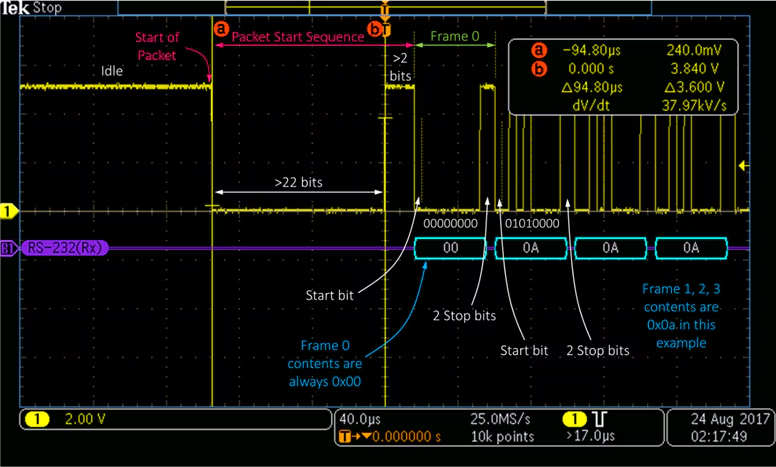
DMX512A is a Communications Protocol that was developed in 1998 to allow the Digital MultipleXing or sequential combining of 512 control channels or addresses, into a Data Packet that is repeated at a nominal frame rate of 44 Hz. The DMX packets are transmitted using the RS485 standard for serial transmission in electrically noisy environments. A group of 512 channels is called a Universe.
Initially DMX512A was developed for Dimmers where one DMX 512A channel controlled one Dimmer Channel and the conventional lights that were plugged into it. Initially a DMX512A channel has 8 control bits, which provide 254 voltage increments that the dimmer converts into a 0 to 100% brightness control.
The disadvantage of 8 bit control resolution is that many LED fixtures have visible Steps of brightness at lower output levels. To overcome this, manufacturers use 16 bits of resolution, which uses two consecutive control channels.
Early LED Fixtures had separate Red, Green and Blue light emitters, with one channel of DMX512A used for each colour. Later design LED Fixtures added extra coloured emitters which are mounted on the same package, usually referred as an All-In-One LED. Each colour needs a separate control channel, with newer design using 16 bit resolution or two control channels to provide more accurate resolution of colours.DMX wiring runs in a Daisy Chain configuration, looping from one device to the next. There needs to be a DMX Terminator at the end of every cable run, to present signal reflections that can corrupt the DMX signal. The maximum length of a DMX run is 300m. There DMX512A standard limits the number of devices to 32.
If you want to send the DMX signals to two or more cable runs, you need to use a DMX Splitter.
There are Ethernet systems that allow multiple Universes of control.
Remote Device Management was added to the DMX protocol that allow for Bi-Directional control between the controller and the devices. There are different names for RDM, Zero88 call it RigSync.
RDM can affect older equipment such as Dimmers that are not capable of receiving the RDM data packets. This is usually evident by the dimmer channels flickering. It is prudent to turn RDM off when running a show if you are not experienced with using it.
CAUTION – LED Fixtures have to be supplied with a stable power supply. Connecting an LED Fixture to a Dimmer Circuit will result in damage to the LED Fixture Electronics. Check the patchfield before plugging any LED fixture into a lighting bar socket !
Some installations use Power Switching Systems, such as the LSC APS, that detect the precence of a DMX512 signal from the Control Desk or Computer and switch on the power to the LED power sockets in the lighting rig. They may also switch off the power after a preset time, after the DMX control signal is switched off.
Types of LED Fixtures
All LED Fixtures have basic Parts
Outer Casing Usually aluminium but can be plastic. This usually has Power inlets and power outlets, DMX inputs and Outputs on it.
Mounting Yoke to allow the fixture to sit on the stage or be rigged, usually to a lighting bar.
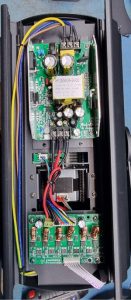
Power Supply – Usually Universal 110v ac to 240v ac 50 to 60 hertz input, to be converted with a Switch Mode Power Supply to provide the supply voltages for the internal parts.
Display Board – has seven segment LED displays with push buttons, or LCD display which may be a touch screen, that allows you to set the DMX Address and Fixture Mode.
Control Circuit Board – Receives DMX512 signal, processes it in a microcontroller depending on the Mode and Address that has been set in the Menu, then controls the amount of output from the LED Driver Circuits to vary the Intensity of the LED Emitters.
LED DRIVER circuit board – may be a separate board. The number of chokes and square driver FET’s indicate how many colour emitters it is supplying.
LED PAR Light
These lighting fixtures have evolved from the early low wattage single colour 10mm LED emitters
To the 1W power Tri RGB and Quad RGBW for drama or RGBA for music all-in-1 LED emitters.
To the higher power 20W typical 4in1 or 5in1 or 6in1 (RGBWAUV) being among the more common versions.


LED WALL WASHER
LED Wall Washers have multiple rows of all – in – one LED emitters. They were designed for architectural lights, but can be used as LED Sidelights when rigged vertically or used as an overhead colour wash.

LED BARS
LED bars being used as footlights at Dolphin Theatre with offset brackets for low profile.
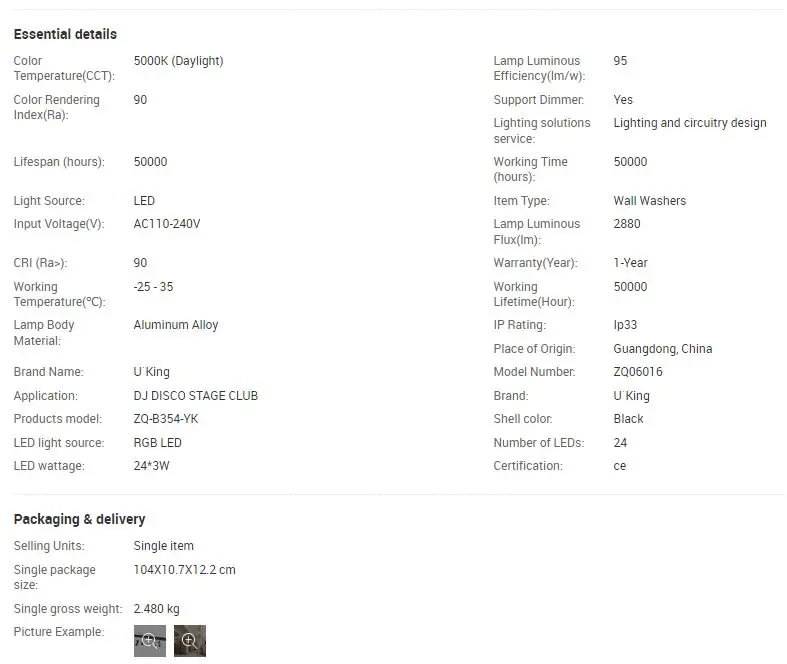
The bottom picture is a Uking ZQ-B354 24 x 3W RGB LED BAR


Understanding LED Fixtures Manuals
LED Fixture Manuals usually have safety warnings in the front of the manual for Safe and Efficient Operation. These safety instructions include rigging guidelines, risk of fire and hazards to people.
Then there is a description of the Menu operation that includes stand alone operation and operation with DMX512A control. There are usually several different mode of DMX512A operation, starting with 2 channel operation to allow control from a basic fader lighting desk, then increasing in the number of functions available as the number of control channels is increased,
LED fixtures that have higher 16 bit resolution of Diming, Colour, Pan and Tilt if a mover, usually have a high number of control channels.
The selection of which Mode to use is a compromise between how many features you want access to versus how many control channels your lighting controller has.
Rigging and Patching LED Fixtures
When LED fixtures were being introduced to schools, they were added to an existing conventional lighting rig that used dimmers. Early patching conventions included patching four 12 channel dimmer racks as fixture numbers 1 to 48, that were patched to DMX channels 1 to 48, then the LED fixtures were patched after the dimmer channels. This allowed the addition of extra LED fixtures at the end of the existing DMX channels. For desks with several Pages of faders,, such as the FLXS48, page 1 could be conventional fixtures and Page 2 could be LED fixtures. As a venue increased the number of LED fixtures, they were repatched to Page 1 and the conventional fixtures patched to page 2 to make the LED fixtures readily accessible.
Example – Patching qty 9 eprofile FC Zoom Profiles onto an FLXS48, then setting DMX Address and DMX Channel Number.
On FLXS48 backup your show file using Setup > Save before doing any changes, then use Save and create a new file name by incrementing the version number.
Then select Add New Fixture> type in the fixture name using a keyboard, eprofile > enter > EK Lights Eprofile FC will appear on the screen, select mode, in this case 14 channel(14Ch) the channel attributes are listed which you can check with the handbook, > Next , enter Quantity, Fixture Number and DMX Address, in this example Qty 9, Fixture Number 1 and DMX Address 013, to allow for a 12 channel dimmer rack on DMX 1 thru 12. then Finish. Deselect Setup.
Notice that the FLXS48 has lit up channel 1 to 9 led’s.
Bring up Channel 1, notice that the channel led’s have gone off, select Colour TAB, if the colours are greyed out, Press Automatically create Colour palettes and colours will appear, select RED colour, select Ch 2, only Ch 2 led s on, select Green, Channel 3 Blue, Channel 4 White, Channel 5 Amber, Channel 6 Violet.
This sets up the DMX512A control signals to the lights, so when you change their DMX Address and DMX Channel (Mode) correctly, they will have their separate colours.
Now make up tape labels with Fixture Number F1, DMX Address as 1/013, Mode as 14CH, for each fixture and put them on the back of each fixture, underneath the display.
On each fixture select MENU, use DOWN to go to DMX Address, press ENTER twice to get the square box around the DMX Address, use the UP or DOWN push buttons to change the DMX Address, press ENTER to save the new address. The press MENU and press DOWN to go to DMX Channel, press ENTER, then use the DOWN to select 14CH, then Press ENTER. Your LED Fixture should not be outputting the desired Colour at full brightness.
Example – Patching qty 24 Event Lighting PRO PAR onto an FLXS48, then setting DMX Address and DMX Channel Number.
On FLXS48 backup your show file using Setup > Save before doing any changes, then use Save and create a new file name by incrementing the version number.
Then select Add New Fixture> type in the fixture name using a keyboard, Pro Par > enter > Select Event Lighting which will be in the list of manufacturers, Select ProPar 12×12, select mode, in this case 8 channel(8 Ch), the channel attributes are listed which you can check with the handbook, > Next , enter Quantity, Fixture Number and DMX Address, in this example Qty 24, Fixture Number 10 and DMX Address 139, so that they are patched after the eprofile FC. then Finish. Deselect Setup.
Notice that the FLXS48 has lit up channel 10 to 33 led’s.
Bring up Channels 10, 16, 22, 28, notice that the other channel led’s have gone off, select Colour TAB, Press Automatically create Colour palettes and colours will appear, select RED colour, bring up the second fader in each group of six, , only these six led’s are on and the Clear LED stays on to indicate that the FLXS48 is still outputting DMX control to the first group of fixtures, select Green, bring up the third fader in each group of six, , only these six led’s are on and the Clear LED stays on, Select Blue colour, repeat for Fourth fader White, Fifth fader 5 Amber, Sixth fader Violet.
Now make up tape labels with Fixture Number F10, DMX Address as 1/139, Mode as 8CH, for each fixture and put them on the back of each fixture, underneath the display. Copy details from the Setup > Fixture schedule > ProPar 12×12 window for the other fixtures.
On each fixture select MENU, use DOWN to go to DMX Add, press ENTER once, use the UP or DOWN push buttons to change the DMX Address, press ENTER to save the new address. The press MENU and press DOWN to go to DMX Modes, press ENTER, then use the DOWN to select 14CH, then Press ENTER. Your LED Fixture should not be outputting the desired Colour at full brightness.
Now save your LED Testing as a cue in the Master Playback so it can be used to see if all of the system is working. You can Add other Lamp Tests using the Update key.
Example – Patching qty 8 Ovation Cyc 1 FC onto an FLXS48, then setting DMX Address and DMX Channel Number.
On FLXS48 backup your show file using Setup > Save before doing any changes, then use Save and create a new file name by incrementing the version number.
Then select Add New Fixture> type in the fixture name using a keyboard, cyc 1 fc > enter > Chauvet Ovation 1 FC will appear on the screen, select mode, in this case 7 channel(7Ch) the channel attributes are listed which you can check with the handbook, > Next , enter Quantity, Fixture Number and DMX Address, in this example Qty 8, Fixture Number 35 and DMX Address 418, to continue after existing patched fixtures. then Finish. Deselect Setup.
Notice that the FLXS48 has lit up channel 35 to 42 led’s.
Bring up Channels 35 to 42, notice that the other channel led’s have gone off, select Colour TAB, Press Automatically create Colour palettes and colours will appear, select RED colour, bring up the second fader in each group of five, only these five led’s are on and the Clear LED stays on to indicate that the FLXS48 is still outputting DMX control to the first group of fixtures, select Green, bring up the third fader in each group of six, , only these six led’s are on and the Clear LED stays on, Select Blue colour, repeat for Fourth fader White, Fifth fader 5 Amber, Sixth fader Lime.
Now make up tape labels with Fixture Number F10, DMX Address as 35/418, Mode as 7CH, for each fixture and put them on the back of each fixture, underneath the display. Copy details from the Setup > Fixture schedule > Ovation CYC 1FC window for the other fixtures.
On each fixture select MENU, repeatedly until Start Address then press <ENTER> once, use the UP or DOWN push buttons to change the DMX Address, press MENU to save the new address. The press MENU to go to DMX Address, press ENTER, then use the DOWN to select 14CH, then Press ENTER. Your LED Fixture should not be outputting the desired Colour at full brightness.
Now save your LED Testing as a cue in the Master Playback so it can be used to see if all of the system is working. You can Add other Lamp Tests using the Update key.
Controlling LED Fixtures
Zero 88 FLX S24 RRP $4,999 & FLX S 48 RRP $6500 ( lower prices available) are fader based desks from Zero88 that use the same ZEROS operating system as most other Zero88 desks. They have 2 pages of faders that are Channel or Playback faders.
The internal 7″ touch screen can display Groups to give the operator the equivalent of the third row of Group faders on the legacy desks.
The FLX S48 has a DVI-D output and USB port to allow the use an external 24 inch touch screen monitor such as a Dell P2418HT 24 inch Touch IPS LED Monitor for $449 to provide easy access to the Colour, Beam, Shape, Position, Effect palettes.
They have four encoder wheels for moving lights, the ability to set up a remote tablet or smartphone as a remote screen or riggers remote. They come with one universe and can be expanded to two universes. They do not have built in colour swatch books but can import swatch book equivilant images using the image picker function.They have the Lee Mood Boards installed and can do command line entry for advanced operators.
The FLX S24 is ideal for small schools as one page of 24 channels can be single channel dimmers and the second page of 24 channels can be LED’s or movers.
FLX S https://zero88.com/control/flxs
If a school is updating to LED’s and has several dimmer racks, a FLX S48 is a better choice as the extra faders provides quicker access to lights without having to changes pages all of the time.
For more details and videos go to https://zero88.com/control/flxs

Page updatedted 23 March 2026